Scheduling
Overview
Use a schedule to run a project's pipeline automatically on an hourly, daily, weekly, monthly, or custom recurrence. Schedules work well for data refreshes, reports, and transformation jobs that should run without a manual trigger.
Common Use Cases
- Daily data refresh: Update a dataset at the same time every day.
- Weekly reporting: Process data and generate a report once a week.
- Recurring workflows: Run a routine job on a set schedule.
- Hourly updates: Refresh data every hour.
Where to Manage Schedules
You can manage schedules from the project or monitor them from the Dashboard.
Project-Level Schedule Tab
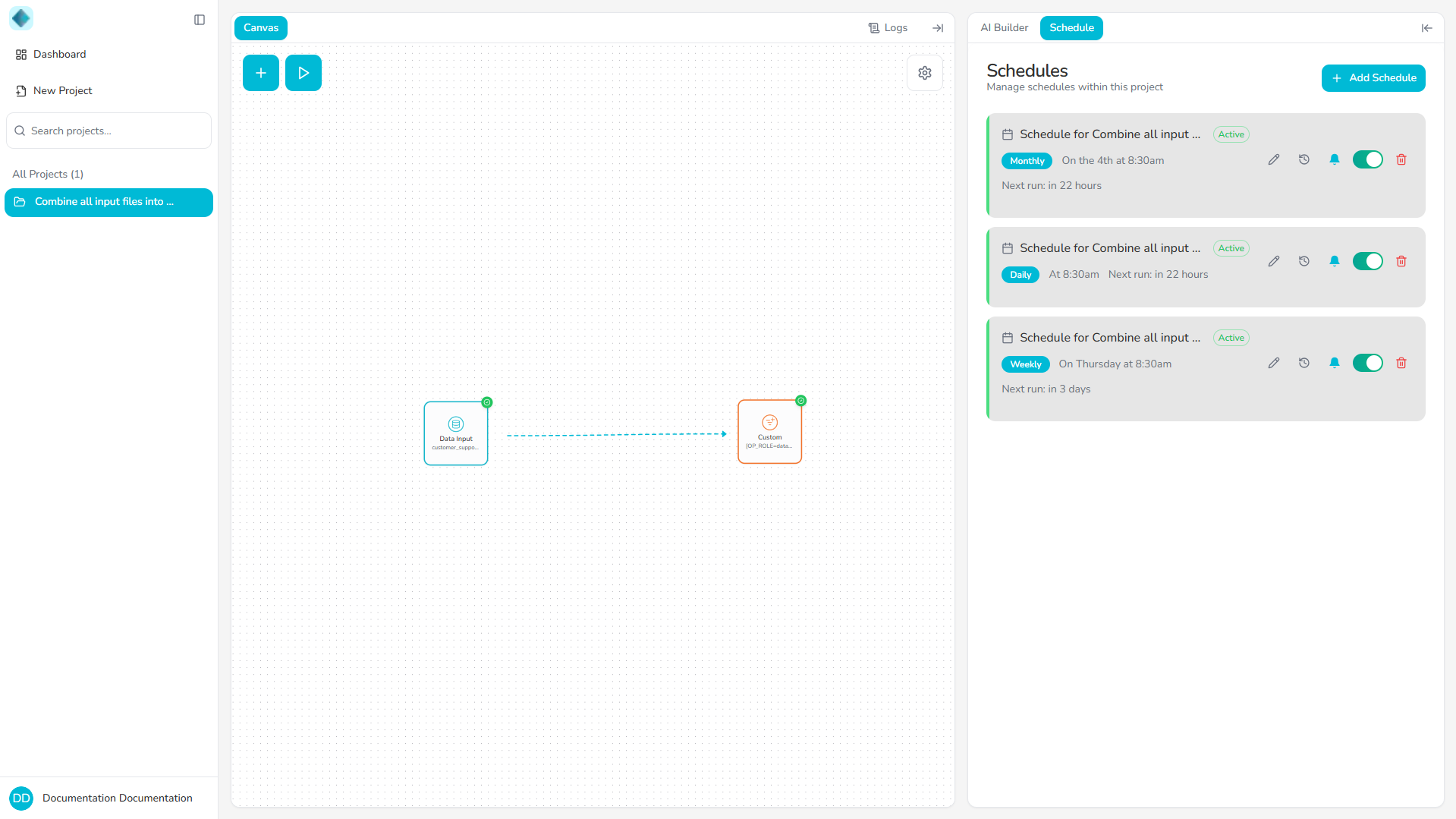
Use the project's Schedule tab to create and manage schedules for that project's pipeline.
- Open your project.
- Open the Schedule tab.
Dashboard Overview
The Dashboard shows schedules from all your projects, including upcoming runs and their status.
Creating a Schedule
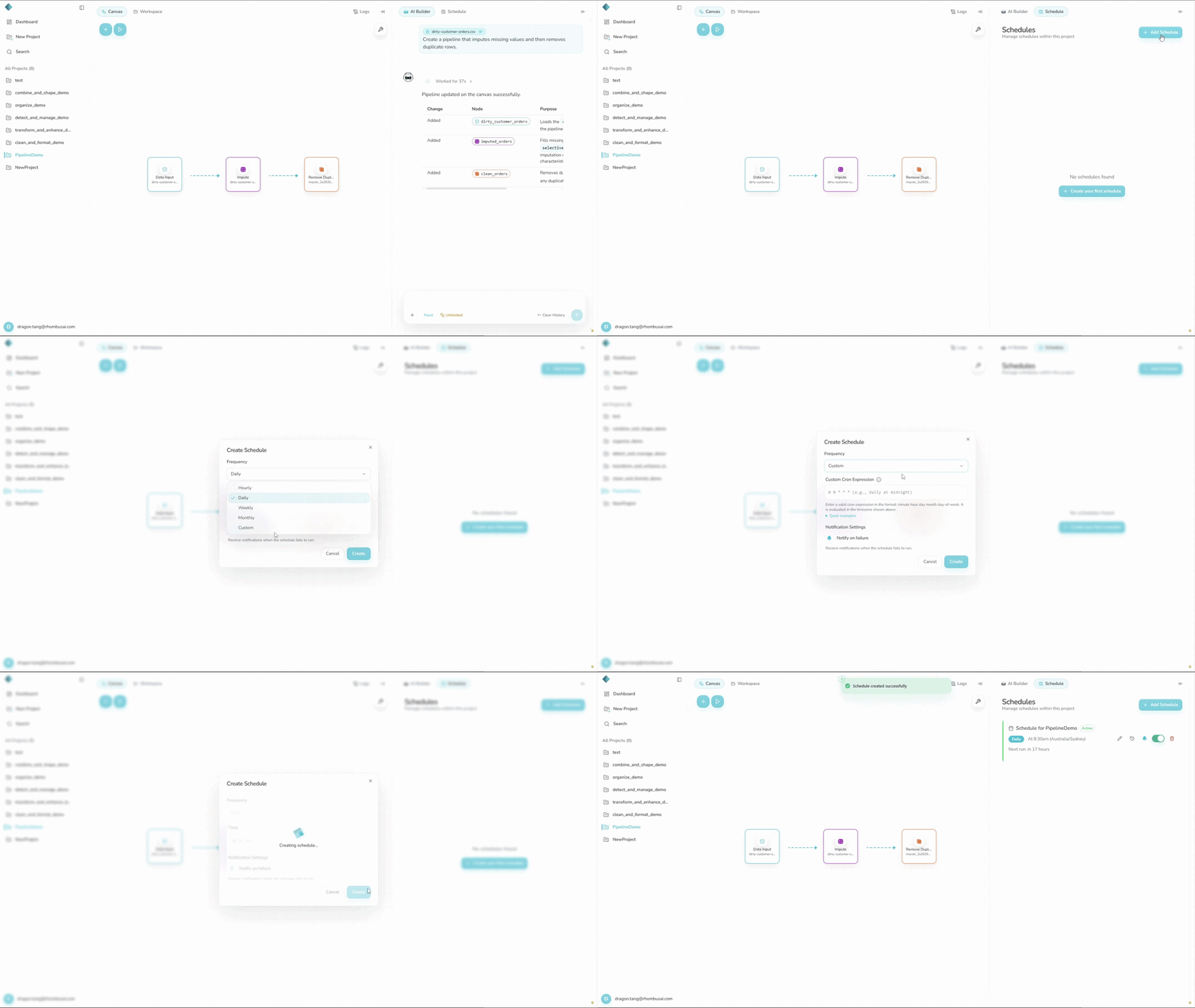
Step 1 — Access the Schedule Tab
- Open the project with the pipeline you want to schedule.
- Open the Schedule tab.
Step 2 — Create a New Schedule
- Click "+ Add Schedule".
- The schedule applies automatically to the current project's pipeline. There is no separate pipeline selector.
Step 3 — Configure Schedule Type
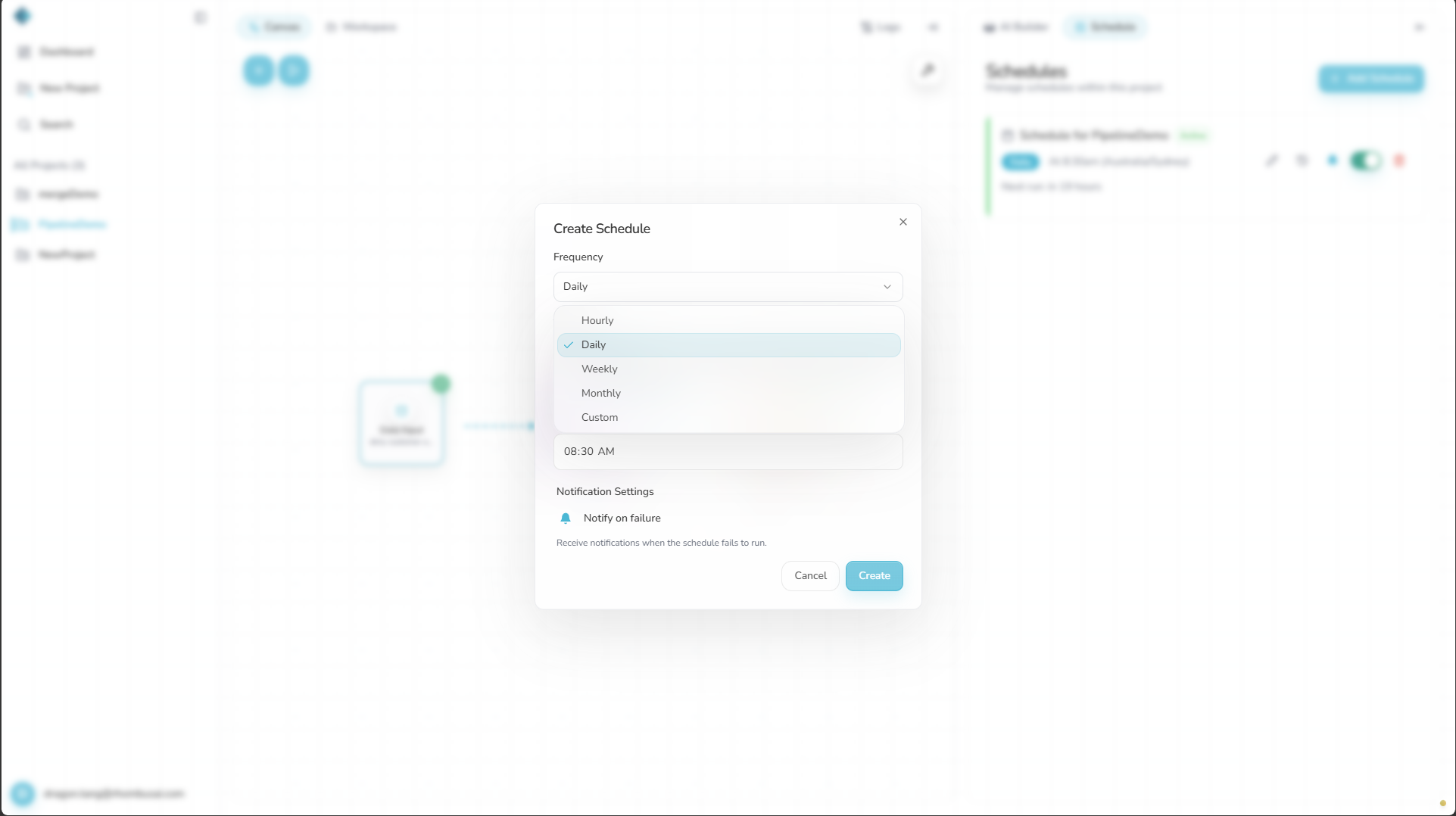
Choose how often the pipeline should run:
Hourly
Runs every hour at the minute you select, such as 15 minutes past the hour.
Daily
Runs once a day at the time you select, such as 2:00 AM.
Weekly
Runs the pipeline on one weekday at a specific time (for example, every Monday at 9:00 AM).
For multiple weekdays, create a separate Weekly schedule for each day or
use a Custom cron expression such as 0 9 * * 1,3,5.
Monthly
Runs on the day and time you select each month, such as midnight on the first day of the month.
Monthly schedules support days 1 through 28 only. Days 29, 30, and 31 are not available because they do not occur in every month.
Custom (Advanced)
Enter a five-field cron expression. Rhombus evaluates the expression exactly as written in the IANA timezone shown in the form, including its daylight-saving rules.
Common Cron Examples:
| Expression | Description |
|---|---|
0 * * * * | Every hour |
30 8 * * * | Every day at 8:30 AM |
0 0 * * 1 | Every Monday at midnight |
Use Hourly, Daily, Weekly, or Monthly unless they cannot express the recurrence you need.
Step 4 — Set Schedule Time
- Confirm the read-only Timezone. A new schedule uses the IANA timezone
detected by your browser, such as
Australia/Sydney. - For Daily, Weekly, or Monthly schedules, select the time. Hourly schedules use a minute-of-hour field, while Custom schedules use the cron expression instead.
- Rhombus interprets the recurrence fields in the displayed timezone.
Do not convert the time or weekday to UTC. The saved IANA timezone keeps the local wall-clock recurrence stable when daylight-saving offsets change.
Step 5 — Configure Failure Email Notifications (Optional)
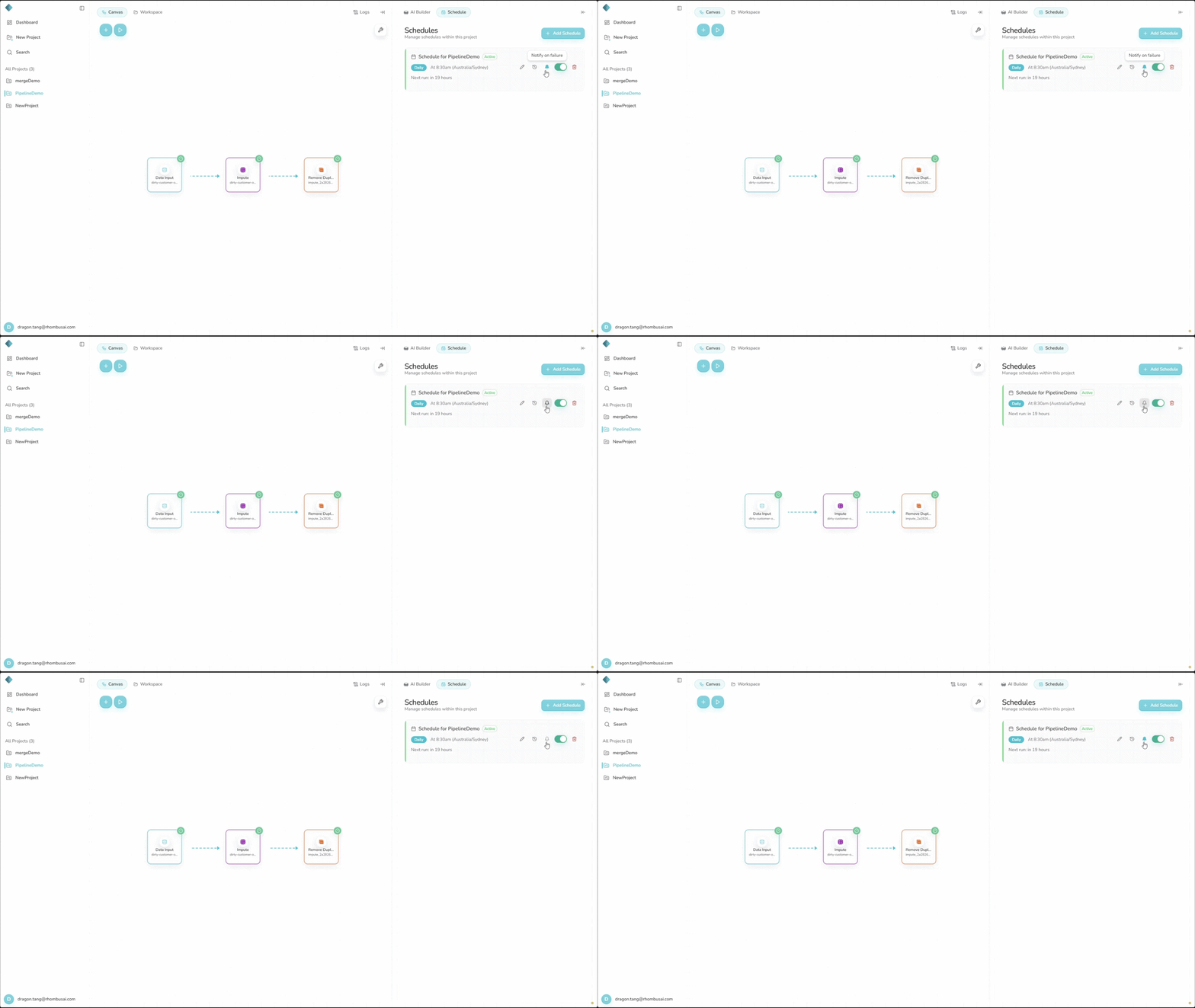
Notify on failure is on by default. Keep the bell toggle on for an email when a scheduled run fails, or turn it off to disable failure emails.
You can change this setting later with the bell icon on the schedule card.
Step 6 — Create the Schedule
- Review the schedule configuration.
- Click "Create" to activate the schedule.
The active schedule will run the pipeline at the configured times.
Managing Schedules
Enable / Disable Schedules
To pause a schedule without deleting it:
- Open the Schedule tab.
- Find the schedule you want to pause.
- Toggle the "Enabled" switch to disable the schedule.
Rhombus keeps the configuration while the schedule is disabled. Turn the switch back on to resume the schedule.
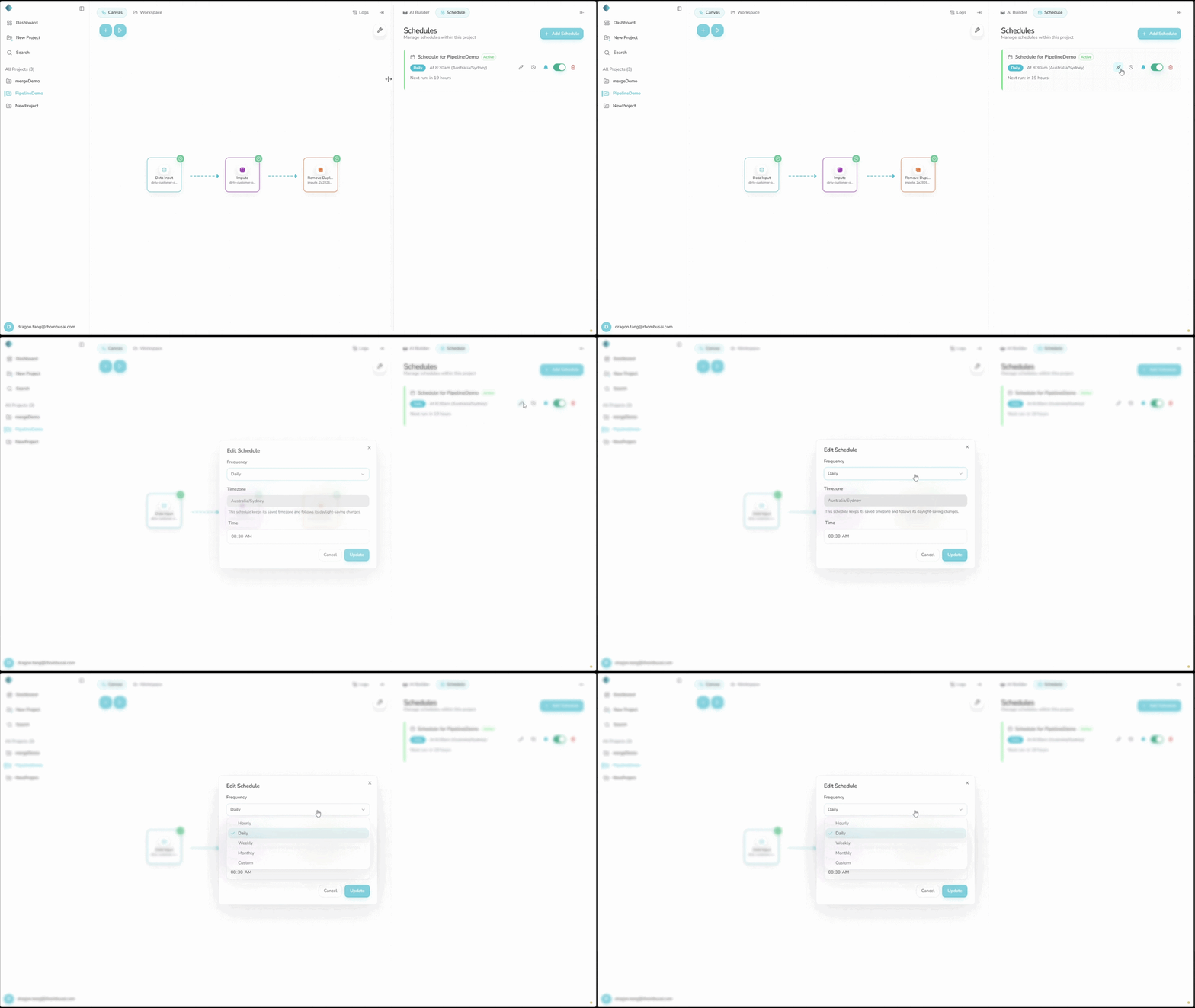
Edit an Existing Schedule
To change its frequency or recurrence:
- Open the Schedule tab.
- Find the schedule you want to edit.
- Click the pencil (Edit) icon on the schedule card.
- Change the frequency and its recurrence fields, such as the minute, time, weekday, day of month, or custom cron expression.
- Click "Update" to apply your changes.
The saved timezone is read-only in the Edit dialog. To use a different timezone, delete the schedule and create a new one. Control failure email notifications separately with the bell icon on the schedule card.
Changes apply only to future runs, not past runs.
Delete a Schedule
- Open the Schedule tab.
- Find the schedule you want to delete.
- Click "Delete" or the delete icon.
- Confirm the deletion when prompted.
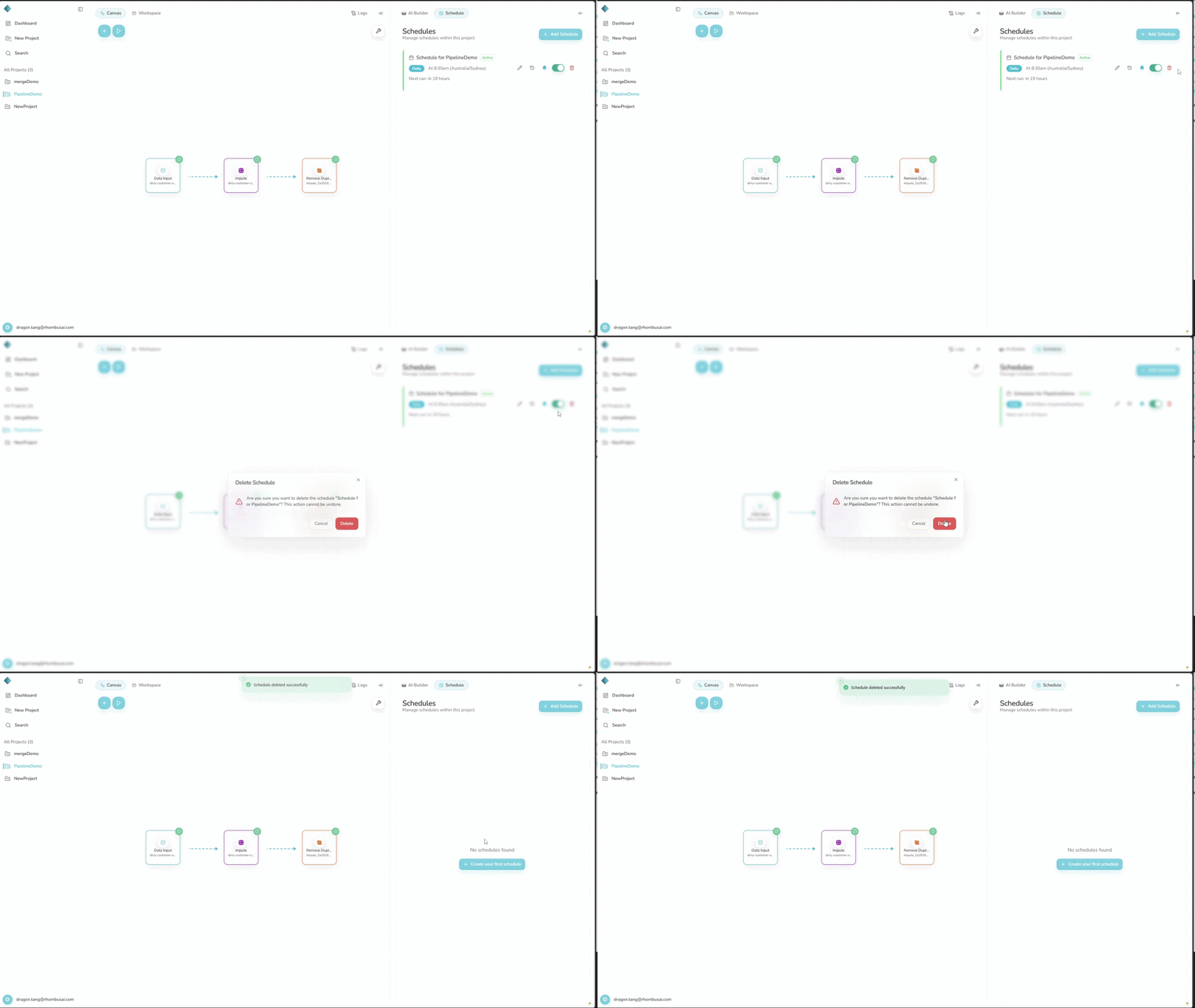
You cannot undo schedule deletion. Rhombus removes the configuration and stops triggering the pipeline. To use the schedule again, you must recreate it.
How Schedules Interact with Pipelines and Transformations
Schedule Hierarchy
Schedule → Pipeline → Transformations
- Schedule: Determines when a pipeline runs.
- Pipeline: Defines what runs—the full workflow.
- Transformations: Make up the individual steps inside the pipeline.
A schedule runs the entire pipeline; it cannot target a single transformation. Future runs use the latest saved pipeline configuration. At each trigger, Rhombus captures the current configuration in an immutable snapshot. It may reuse a matching snapshot if the configuration has not changed. The execution remains associated with the snapshot it used.
Saved pipeline changes apply to future scheduled executions. They do not change the immutable snapshots associated with past executions.
What Happens When a Schedule Triggers
At the scheduled time, Rhombus runs the associated pipeline as if you had clicked Run. Transformations run in connection order with the settings captured in the execution snapshot.
How Transformations Execute During a Scheduled Run
- Transformations run one after another, following the pipeline connections.
- Each transformation uses the parameters in the execution snapshot.
- One transformation's output becomes the next transformation's input.
Example execution flow:
Data Input → Remove Duplicates → Sort Data → Export
What Happens When You Change a Transformation
The next scheduled trigger picks up saved transformation changes and captures them in the execution snapshot:
- Edit parameters: The next run uses the new settings.
- Add a transformation: The next run includes the new step.
- Remove a transformation: The next run omits that step.
Changes affect future scheduled runs. Snapshots from past executions remain unchanged. For a safe test, disable the schedule, run a manual test, and then re-enable it.
Execution Results and Failures
Each scheduled run creates an execution record.
Execution Records
Open the schedule history or pipeline execution history to see each run's start time, duration, and status: succeeded, failed, or still in progress.
Failure Reporting
- The history table identifies any transformation node that failed.
- Execution stops at that node; downstream transformations do not run.
- If Notify on failure is enabled, Rhombus sends a failure email.
What You Can See When a Transformation Fails
- The execution record shows the failed node and every node that completed before it.
- Click Export CSV to include the backend error message for executions on the current history page. The table itself does not show error messages or stack traces.
Fix the failed transformation in the pipeline. The next scheduled run uses the saved correction.
Monitoring Execution Results
- Schedule History shows runs for one schedule.
- Pipeline Execution History shows both manual and scheduled pipeline runs.
- Dashboard Overview summarizes scheduled execution status across projects.
Monitoring Schedules
Schedule Status Information
Each schedule card shows its name, frequency, recurrence, and Active or Inactive status. An active schedule also shows Next run when the next execution time is available.
The card does not show a Last Run value or use a Failed schedule status. Check execution history for run successes and failures.
Viewing Schedule History
The visible execution-history table includes:
- The execution's start time and duration.
- Its status: Success, Failure, or In Progress.
- The failed node, when applicable, and nodes that completed.
Use Export CSV to include error-message text for executions on the current page. The schedule-history table does not display stack traces.
Timezones
Each schedule stores an IANA timezone with its recurrence:
- Browser default: A new schedule starts with the timezone detected by your browser. Confirm it before saving, especially when travelling or using a remote browser. You cannot edit the timezone in the schedule form.
- Stable local recurrence: Daily, Weekly, and Monthly schedules retain the selected local time and calendar day across daylight-saving changes.
- Saved timezone: Opening the schedule from another location does not change its timezone. If the recurrence should move, recreate the schedule from a browser in the intended timezone.
- Custom cron: A Custom expression is evaluated in the same displayed timezone. Its hour, day-of-month, and weekday fields are not converted.
- Existing schedules: Schedules created before timezone support keep
UTCto preserve their previous behavior. If they should follow a local timezone, recreate them from a browser in that timezone.
For example, 0 8 * * 1 with Australia/Sydney means Monday at 8:00 AM in
Sydney in both standard time and daylight-saving time. Its UTC execution time
changes automatically with Sydney's offset.
Common Use Cases
Daily Refresh
Run a sales-data pipeline on a Daily schedule at 6:00 AM so the data is ready each morning.
Weekly Reporting
Run a reporting pipeline on a Weekly schedule every Monday at 8:00 AM.
Automated Recurring Workflows
Use an Hourly schedule for a data-cleaning pipeline that must run several times a day.
Limitations and Known Constraints
Monthly Day Limit
Monthly schedules support only days 1 through 28. Days 29, 30, and 31 are not supported.
Disabled Schedules
Disabled schedules do not run, even when their scheduled time arrives.
System Availability
System maintenance may delay scheduled runs.
Concurrent Executions
If the previous run is still in progress, Rhombus may delay or skip the next trigger to avoid overlapping executions.
Troubleshooting
Why Didn't My Schedule Run?
If a scheduled run did not start, check these points:
- Is the schedule enabled? Disabled schedules do not trigger runs.
- Is the schedule time correct? Check the time and displayed timezone.
- Is the pipeline valid? Check that the associated pipeline still exists and is configured correctly.
- Check execution history: Review the schedule history for failed runs and failed nodes. Export the current page as CSV if you need the recorded error message.
- Run the pipeline manually: If the schedule is active, confirm that the pipeline runs without errors.
What's the Difference Between Disabled and Deleted Schedules?
- Disabled: Keeps the configuration but stops new runs. You can re-enable it.
- Deleted: Permanently removes the schedule. You must recreate it to use it again.
Can I Schedule Multiple Pipelines?
A project does not offer a choice of pipelines. Every schedule created from its Schedule tab automatically targets that project's pipeline.
You can create multiple independent schedules with different configurations for the same project pipeline. To schedule a different pipeline, use a separate project and create its schedule there.