Pipeline Quick Start Guide
Overview
Follow these steps to create a project, process a dataset, and download the result.
Before You Begin
Sign in to Rhombus AI before you create a project:
- Go to www.rhombusai.com and click Sign In.
- If you don’t have an account, click Sign Up to create one.
After signing in, Rhombus opens the Workflow page.
Step 1 — Create Your First Project
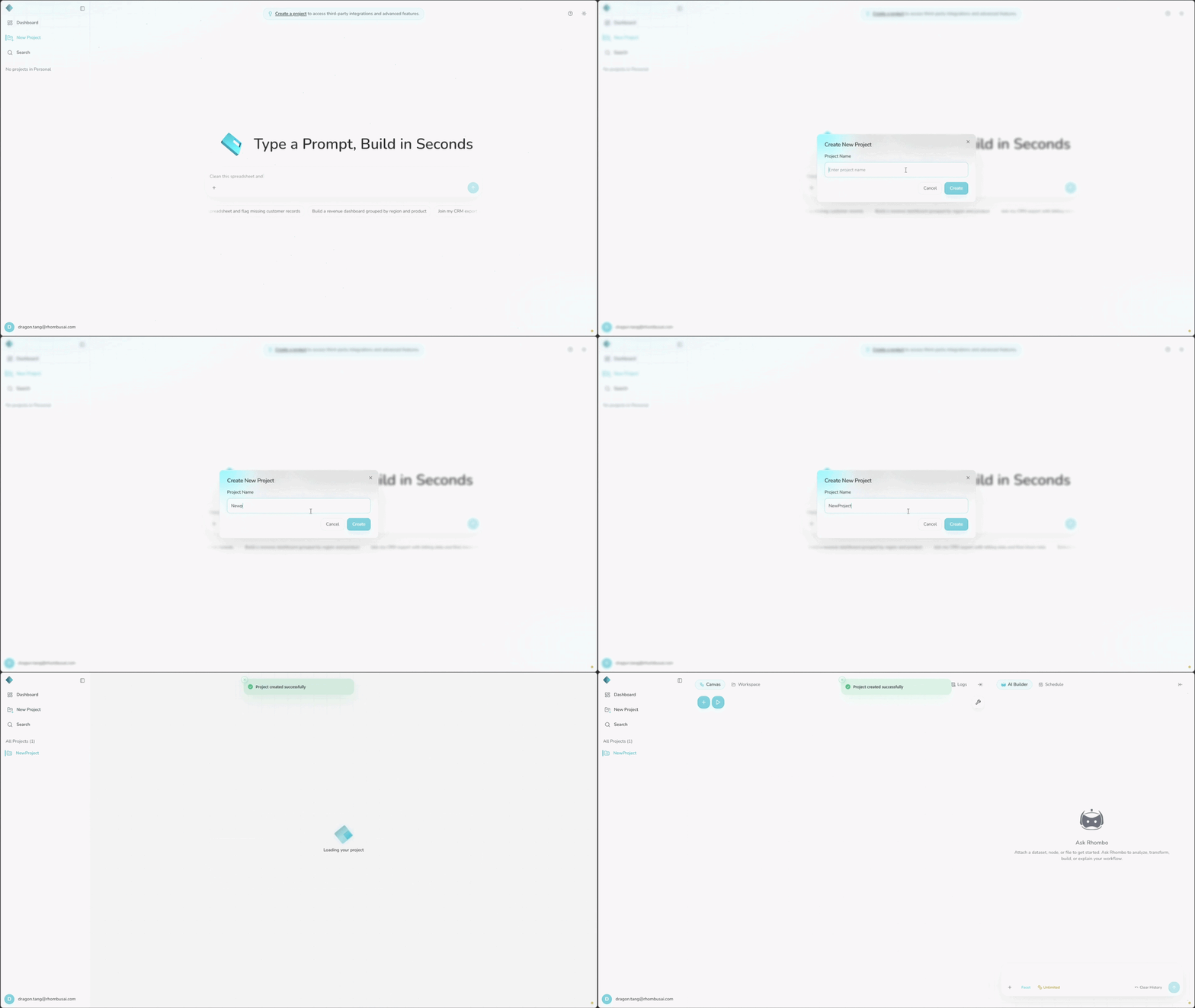
- Open the Projects panel on the left.
- Click New Project.
Name the Project
- Enter a project name.
- Click Create.
- The project appears in the Project List in the left panel.
- A project contains its datasets, transformations, and results.
- Free and Starter plans support up to 3 projects, Personal supports up to 10 projects, and Pro and Enterprise support unlimited projects. See current plan details.
Step 2 — Upload Your Dataset
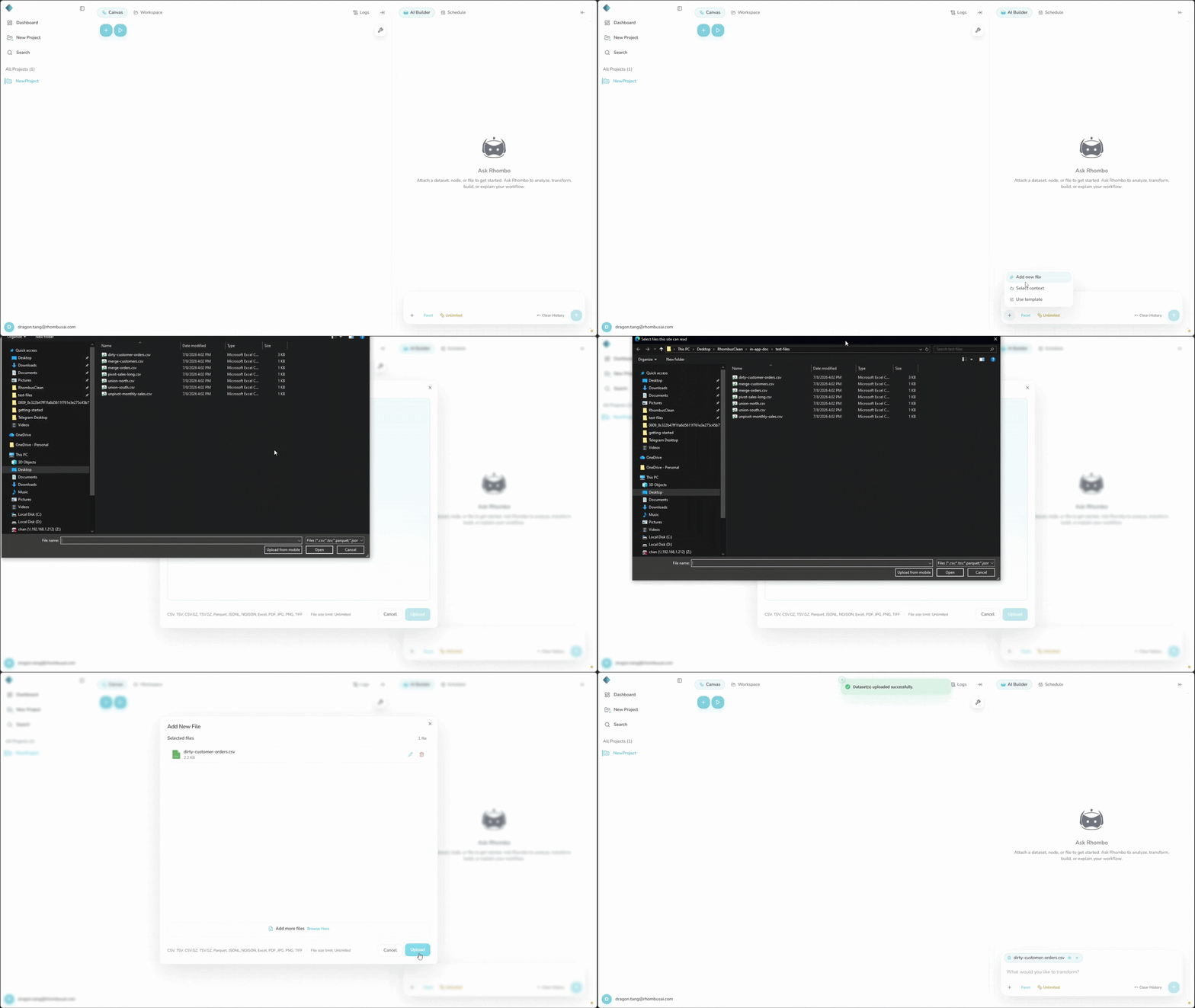
- In the Chatbot panel, click the “+” button.
- Select Add new file to upload from your computer. To connect to Amazon S3 (AWS), Azure Blob Storage, Google Cloud Storage, or Snowflake, choose Third party sources.
- After the upload or import finishes, the file appears in the Chatbot panel, ready for analysis or use in a pipeline.
The Third party sources option is available only when the
fivetran-3rd-party-data-integration feature is enabled for your account or
deployment. Your project must also have an available data-connector slot under
its subscription plan.
- Local file uploads accept CSV, XLS (Excel), and XLSX (Excel).
- Free plan users can upload files up to 20 MB per file. Upload limits can differ by plan and upload surface.
To use a PDF / Image or Web URL, select a Data Input node and choose the matching option in Upload Data.
Data Input nodes always use sampling and memory-safe streaming. By default, the Head method takes the first 100,000 rows. You can change the row count or percentage, or select Head, Systematic, or Reservoir sampling.
Step 3 — Work with the AI Agent
Rhombus uses Analysis mode by default. A regular chat request can analyze your data and create workspace artifacts, but it does not create or change a canvas pipeline. To build one, select Pipeline explicitly.
Step 3A — Analyze and Preview Your Dataset (Default)
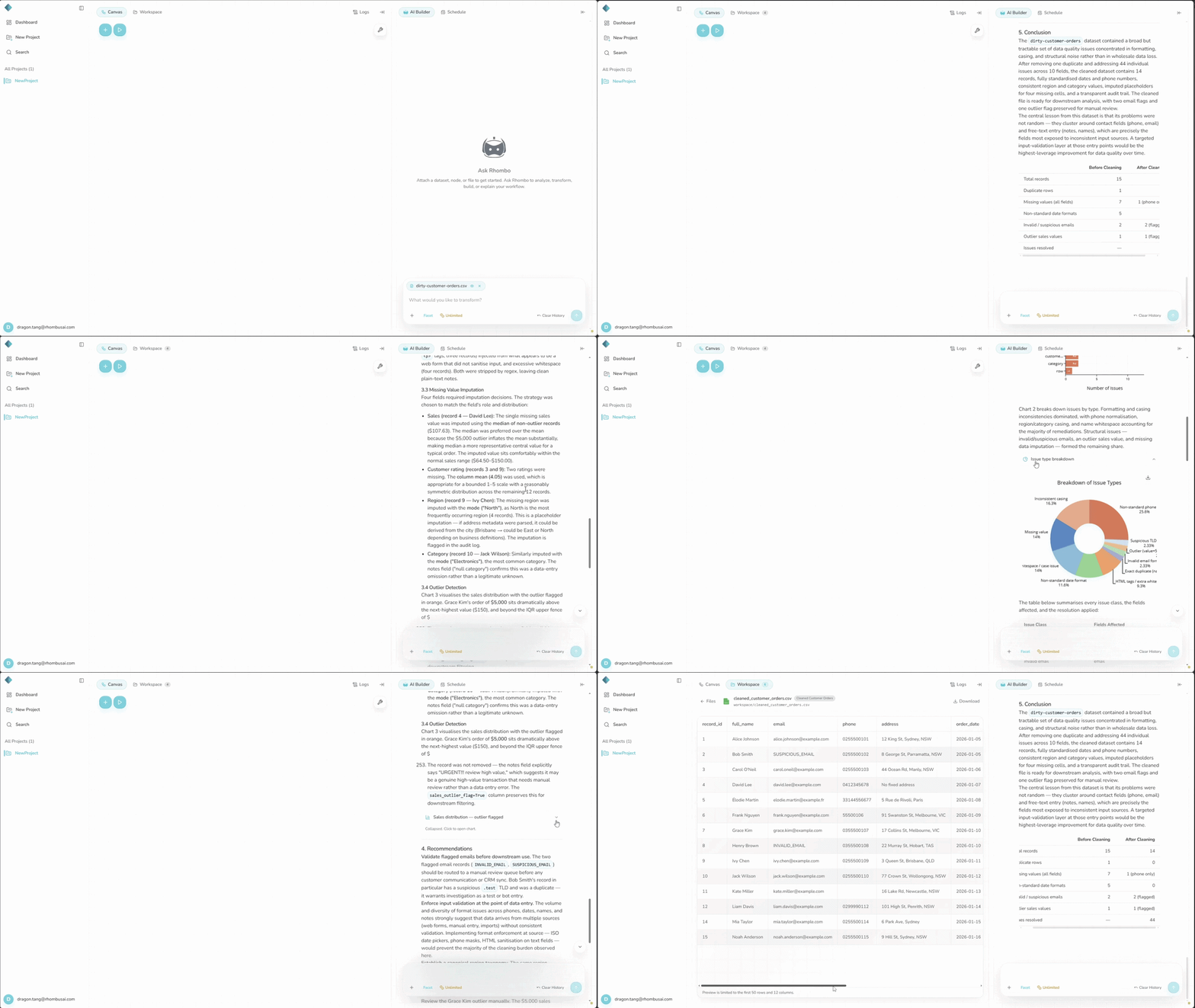
- After uploading the dataset, enter an analysis request in the Chatbot panel. For example: “Analyze this dataset and identify missing values and unusual patterns.”
- Send the request as usual. To show the
/analysiscommand explicitly, type/and select Analysis. - When the agent finishes, its files, tables, and charts appear under Workspace.
/analysis is the default, so you do not need to type it for regular analysis
requests.
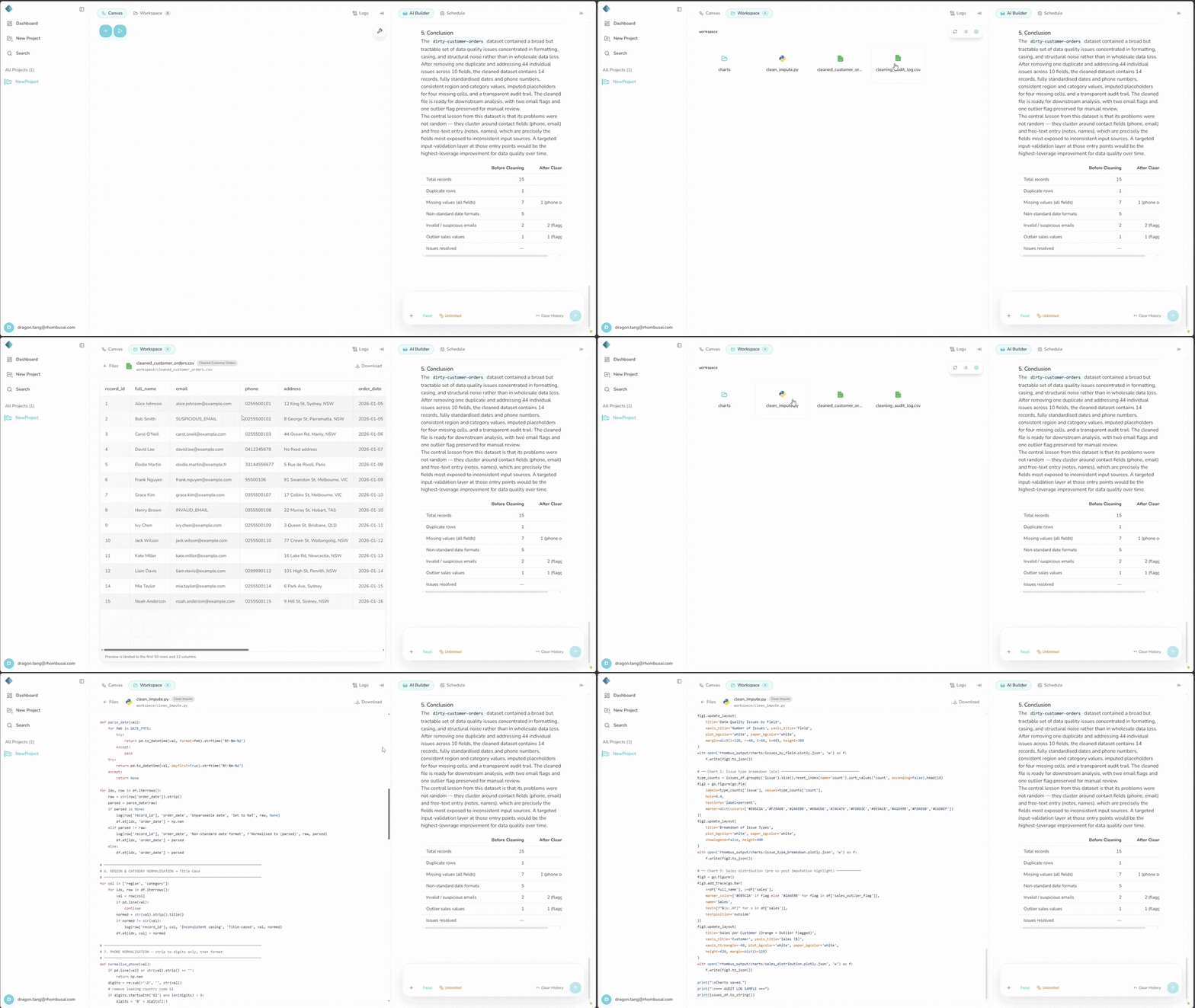
Preview the Analysis Output
- Open Workspace.
- Select a file, table, or chart.
- Check the preview against your request.
- A dataset preview may show only a subset of the rows.
- Analysis artifacts are separate from the canvas pipeline. Creating an artifact does not add transformation nodes.
Step 3B — Create a Pipeline
- Start a new message in the Chatbot panel.
- Type
/and select Pipeline. The Pipeline command label appears in the composer. - Describe the pipeline you want. For example: “Create a pipeline that imputes missing values and then removes duplicate rows.”
- Send the message. The agent creates or updates the canvas nodes.
- Review the nodes, connections, and configuration.
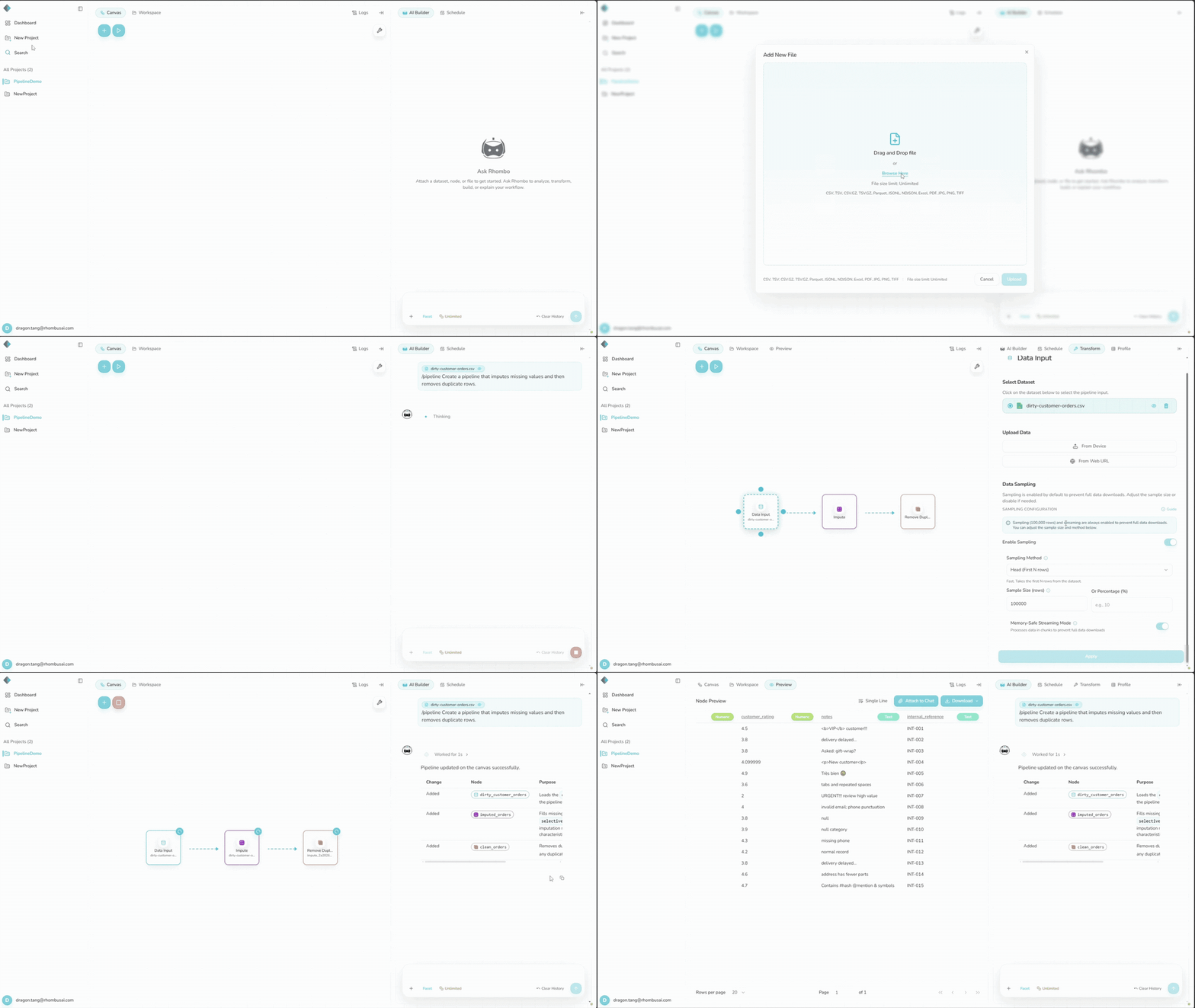
A request without /pipeline stays in the default Analysis mode and does not
create or modify a canvas pipeline.
See Chat Commands for /analysis,
/pipeline, /agent, and /plan examples.
Run and Preview the Pipeline
- In the canvas toolbar, click the play icon beside the + icon. Its hover label is Run Pipeline.
- Wait for the run to finish.
- Select the node whose output you want to inspect. A Preview option appears beside Workspace.
- Click Preview.
- Check the processed output and adjust the pipeline if needed.
/pipeline does not run a new or changed pipeline automatically. Click the
play icon to run it and update the preview.
Step 4 — Refine Your Pipeline (Optional)
If the preview needs work, ask the agent to update the pipeline or edit it manually.
Option A — Use the AI Agent
- Continue the conversation in the Chatbot.
- Select
/pipelineand provide any extra context or instructions. - Review the changes.
Option B — Manually Adjust the Pipeline
- Double-click a transformation node to change its parameters.
- Add more transformation nodes from the Palette if needed.
Run and Check Your Changes
After any change:
- Click the play icon beside the + icon.
- Wait for the run to finish.
- Select the node whose output you want to inspect.
- Click Preview beside Workspace.
- Repeat Step 4 until the output is correct.
Additional Dataset Inspection (Optional)
- Open Dataset Profile in the side panel.
- Review the schema, field types, and statistics.
- If a node reports an error, click “Fix in Chat” to ask the agent for help.
Step 5 — Download Your Results
Choose the download steps for the type of result you created.
Step 5A — Download a Pipeline Output
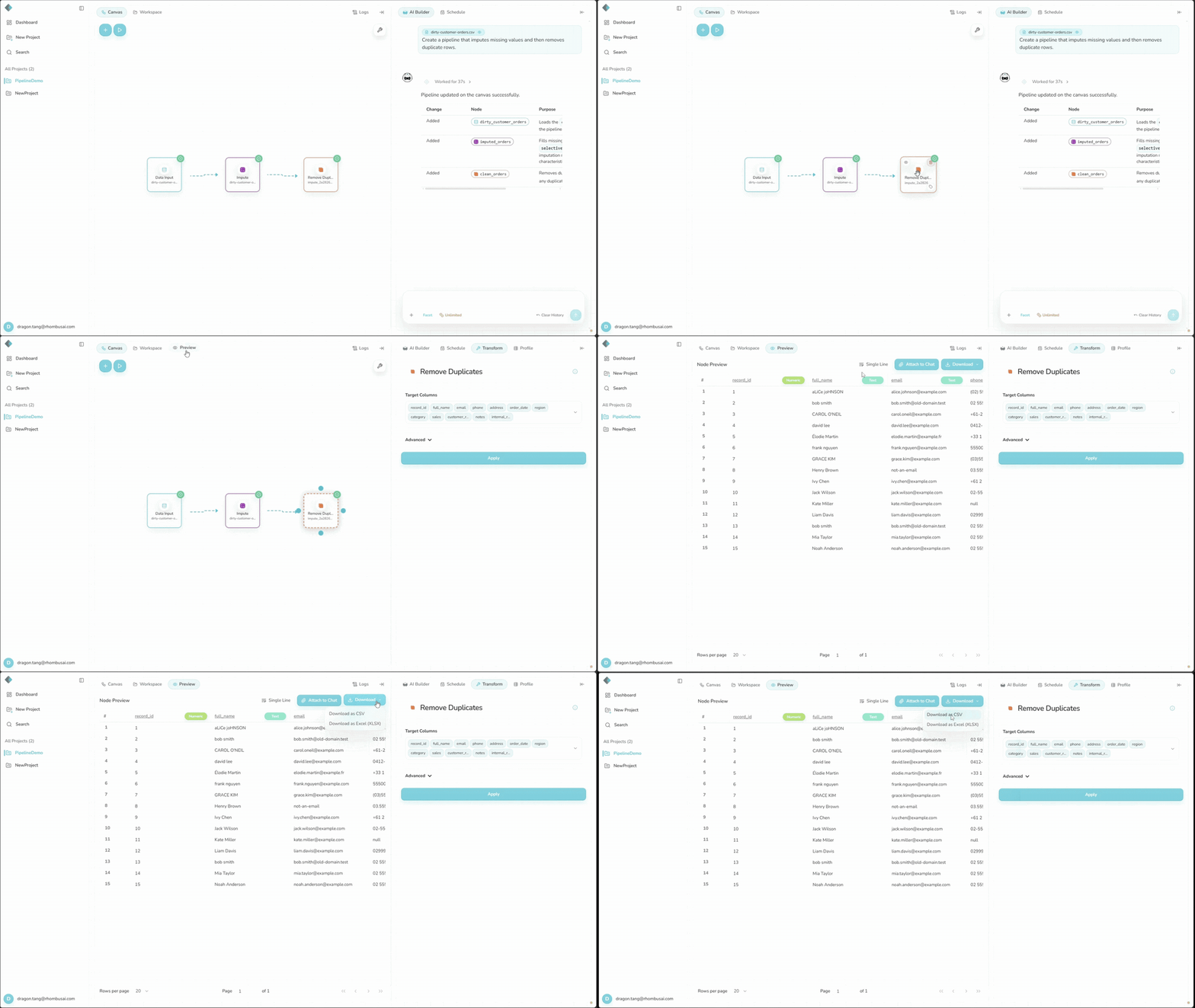
- Run the latest pipeline changes with the play icon.
- Select the final output node. A Preview option appears beside Workspace.
- Click Preview.
- In the Preview panel, open the Download menu.
- Select Download as CSV or Download as Excel (XLSX).
- The download contains the final processed dataset produced by the configured transformations.
- If the result is not what you expected, return to Step 4, update the pipeline, run it again, and review the new preview.
Step 5B — Download an Analysis Artifact
Results from default Analysis mode or an explicit /analysis request are
stored in Workspace.
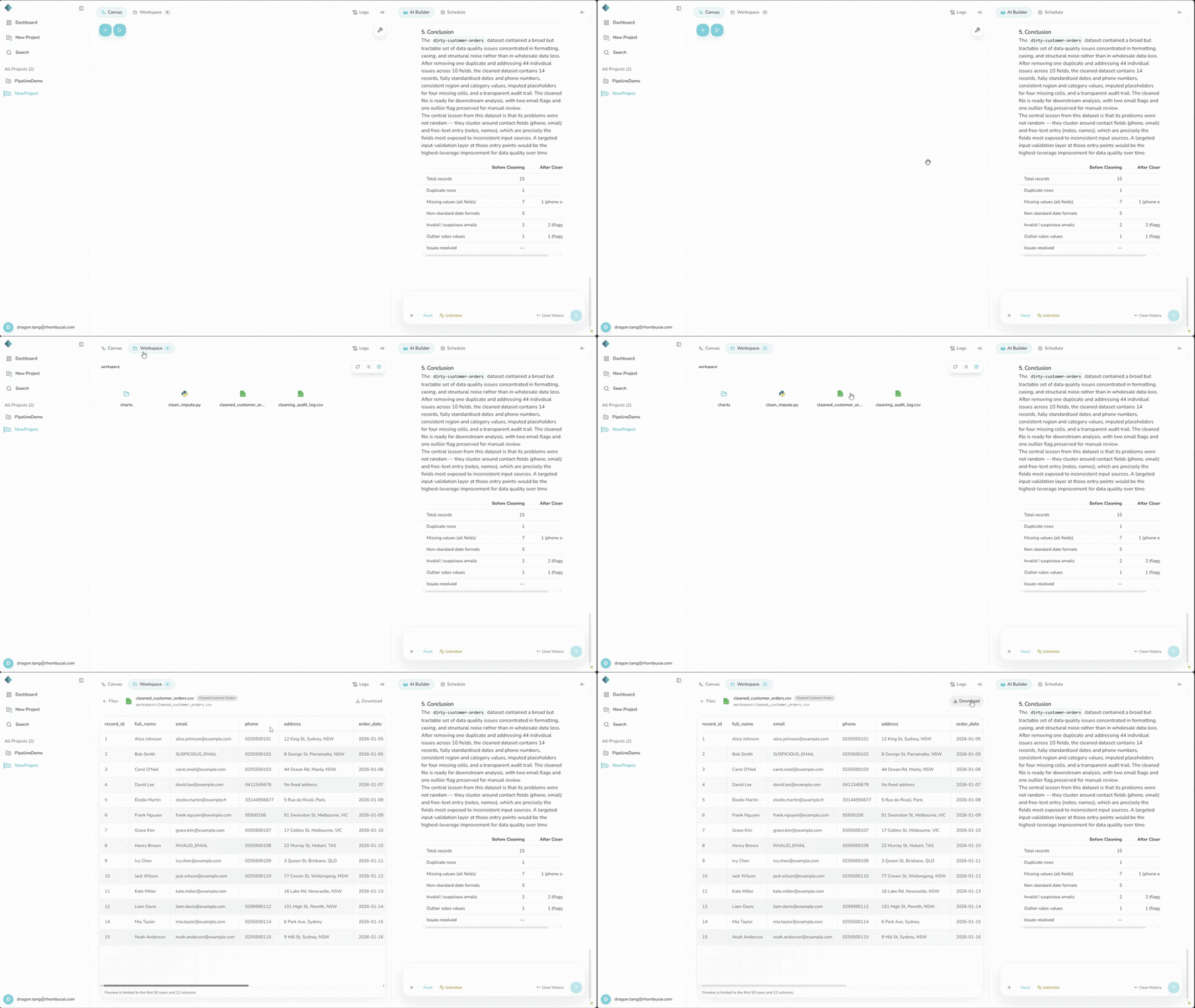
- Open Workspace to see the artifacts generated by the agent.
- Select the file you want to inspect.
- Review its preview.
- Click Download to save the selected file.