Unpivot Transform
Unpivot moves selected columns from a wide dataset into rows, producing long-format data. This operation is also known as melting.
Basic Usage
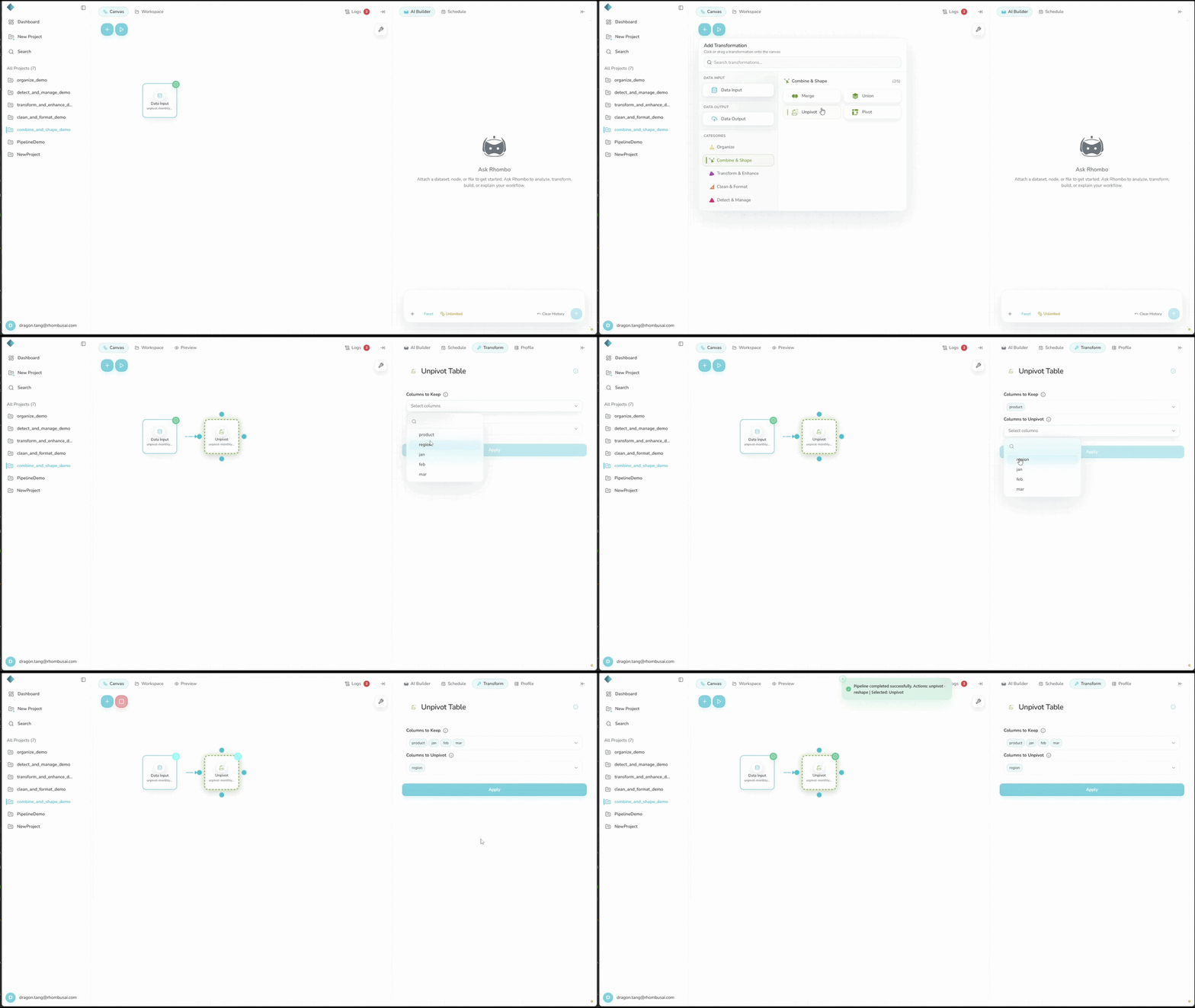
To unpivot selected columns:
- Select Unpivot from the transform menu.
- In Columns to Keep, select at least one identifier column.
- In Columns to Unpivot, select at least one column to turn into rows.
Configuration Options
Basic Options
- Columns to Keep: Select at least one identifier column. These columns remain unchanged in the output.
- Columns to Unpivot: Select at least one column to turn into rows. Leaving this empty does not select all remaining columns, and you cannot apply the form until you make a selection.
Output Columns
variable: Holds the original names of the unpivoted columns.value: Holds the corresponding values from those columns.
For nodes configured in the current app, these names are fixed. Older or API-created nodes may keep custom output names, but the current Unpivot form cannot edit them.
Examples
Example: Unpivoting Monthly Sales Data
Input Dataset:
| Product | Jan | Feb | Mar |
|---|---|---|---|
| Laptop | 1000 | 1200 | 900 |
| Smartphone | 1500 | 1600 | 1400 |
| Tablet | 500 | 450 | 550 |
Configuration:
- Columns to Keep:
Product - Columns to Unpivot:
Jan,Feb,Mar
Result:
| Product | variable | value |
|---|---|---|
| Laptop | Jan | 1000 |
| Laptop | Feb | 1200 |
| Laptop | Mar | 900 |
| Smartphone | Jan | 1500 |
| Smartphone | Feb | 1600 |
| Smartphone | Mar | 1400 |
| Tablet | Jan | 500 |
| Tablet | Feb | 450 |
| Tablet | Mar | 550 |
tip
Long format works well for time series, grouped analysis, and visualizations that expect one observation per row.
caution
Unpivoting can multiply the number of rows. Estimate the output size before applying it to a large dataset.
Best Practices
- Choose Columns to Keep that clearly identify each original record.
- Missing values in unpivoted columns remain missing in the long result.
- If the selected columns contain mixed types, you may need a Convert Column Type step after unpivoting.
- Preview
variableandvaluebefore using them downstream.