Union Transform
Union appends rows from two or more datasets, lining up their columns by name, position, or a manual mapping.
Basic Usage
Before configuring the union, connect its inputs:
Union requires at least two unique parent nodes connected directly to it. They can be Data Input nodes or outputs from other transforms, but at least one configured Data Input must exist upstream.
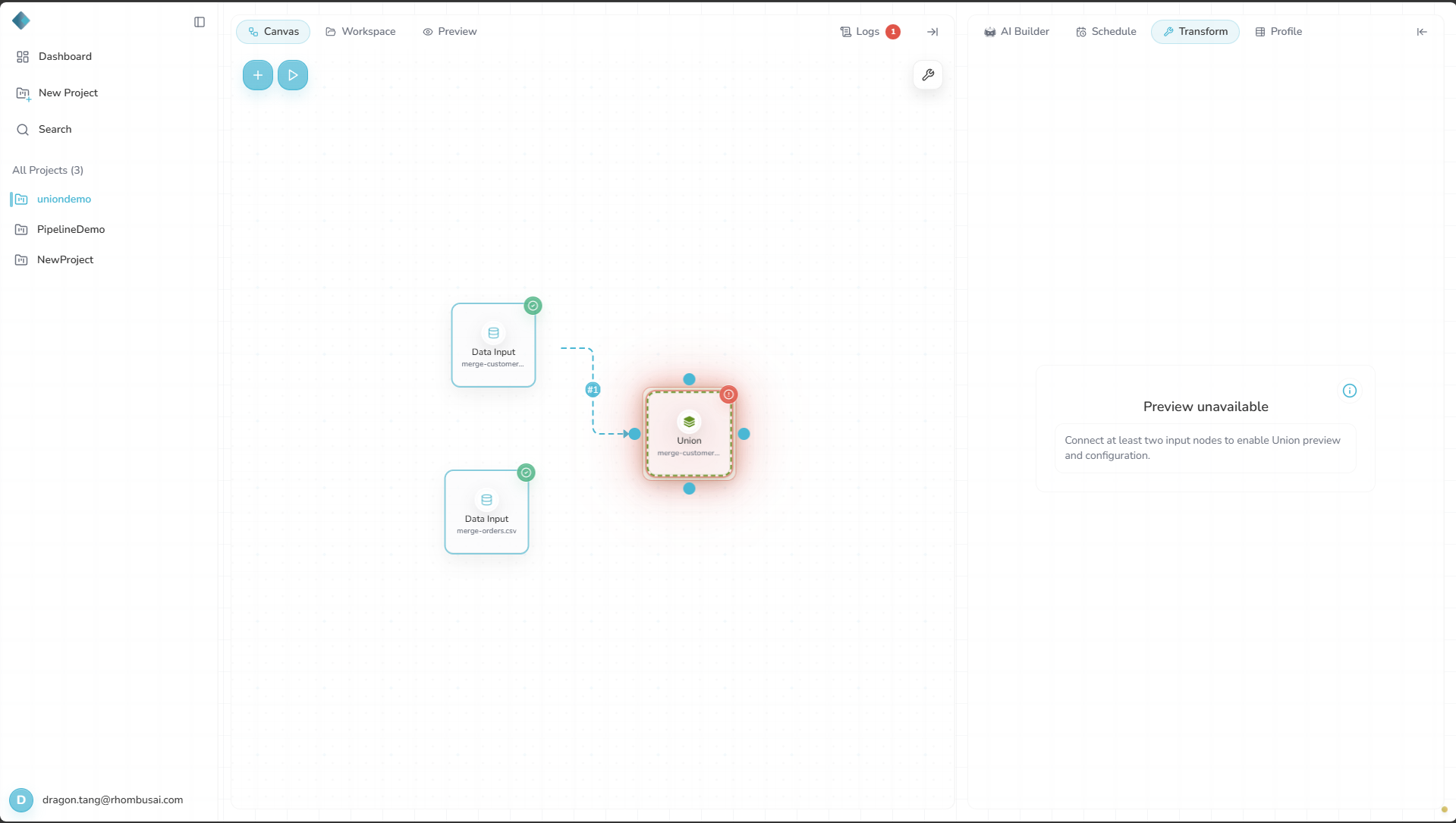
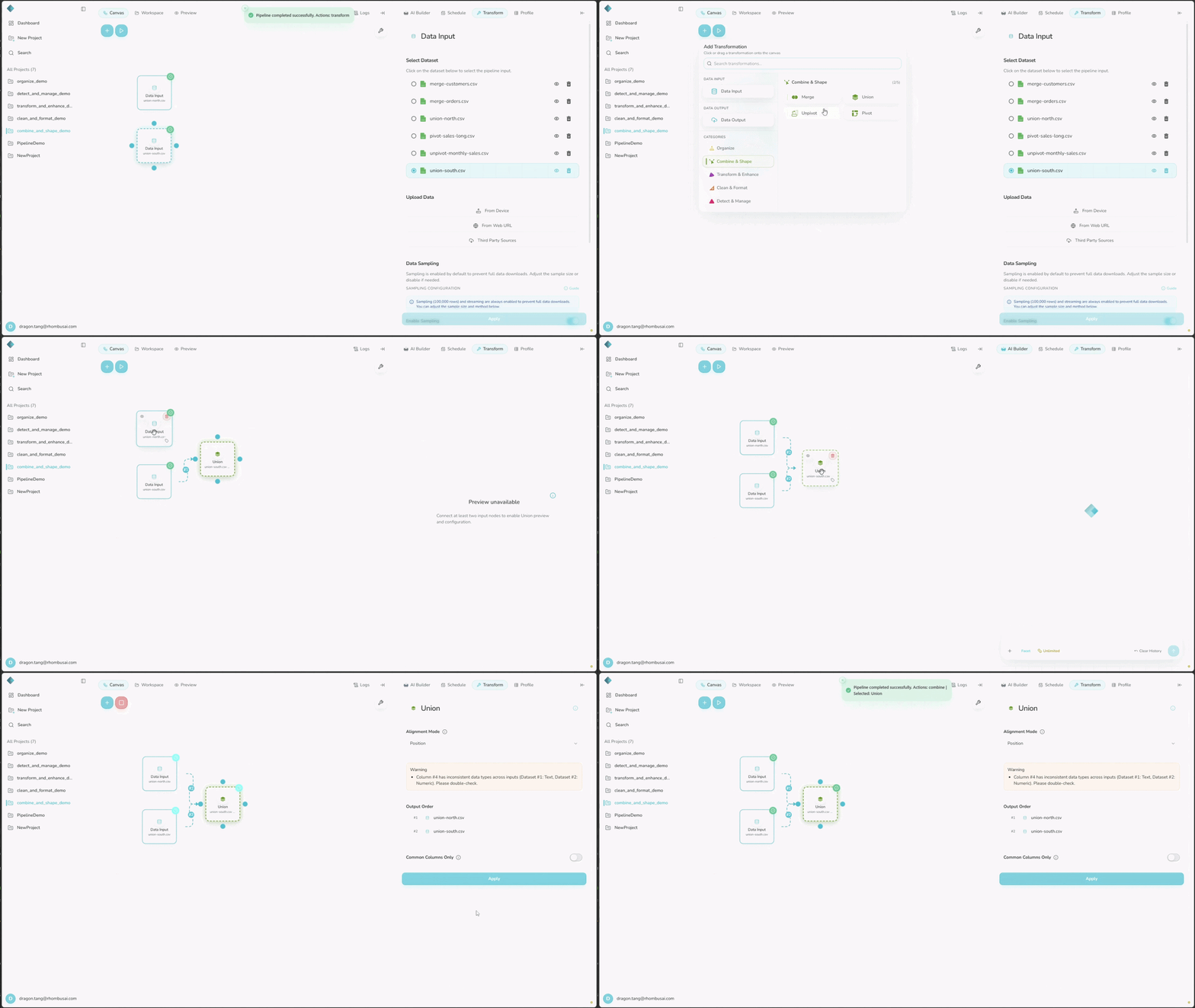
- Select Union from the transform menu.
- Connect the parent datasets to append.
- Choose an Alignment Mode and set the other options.
- If you choose
Manual, configure the column mapping.
Configuration Options
Basic Options
-
Alignment Mode: Choose how columns from each input line up:
Name: Lines up columns with the same name.Position: Lines up columns by their order in each dataset.Manual: Lets you map columns between datasets.
-
Output Order: Drag the inputs into the order their rows should appear.
-
Common Columns Only: Keep only columns present in every input.
Advanced Options
-
Manual Column Mapping: In
Manualmode, match columns that represent the same field. -
Column Configuration: Choose which fields to include and how to line them up.
Examples
Example 1: Name-based Alignment
Input Datasets:
Dataset 1:
| A | B |
|---|---|
| 1 | x |
| 2 | y |
Dataset 2:
| B | C |
|---|---|
| z | 3 |
| w | 4 |
Configuration:
- Alignment Mode:
Name - Common Columns Only:
Off
Result:
| A | B | C |
|---|---|---|
| 1 | x | null |
| 2 | y | null |
| null | z | 3 |
| null | w | 4 |
Example 2: Position-based Alignment
Input Datasets:
Dataset 1:
| A | B |
|---|---|
| 1 | x |
| 2 | y |
Dataset 2:
| C | D |
|---|---|
| 3 | z |
| 4 | w |
Configuration:
- Alignment Mode:
Position - Common Columns Only:
Off
Result:
| A | B |
|---|---|
| 1 | x |
| 2 | y |
| 3 | z |
| 4 | w |
Example 3: Manual Alignment
Input Datasets:
Dataset 1:
| Name | Age |
|---|---|
| John | 30 |
| Mary | 25 |
Dataset 2:
| Full Name | Years |
|---|---|
| Bob Smith | 40 |
| Alice Lee | 35 |
Configuration:
- Alignment Mode:
Manual - Manual Mapping:
- Name → Full Name
- Age → Years
Result:
| Full Name | Years |
|---|---|
| John | 30 |
| Mary | 25 |
| Bob Smith | 40 |
| Alice Lee | 35 |
Choose Manual when differently named columns represent the same field.
Position ignores column names. If the inputs order their columns differently, unrelated values can end up in the same output column.
Best Practices
- Check how columns line up, especially in
Positionmode. - Expect nulls when an input lacks a column and Common Columns Only is off.
- Set Output Order when row order matters.
- Test a large union with representative samples before running the full datasets.