Convert Column Type Transform
Use Convert Column Type to assign a specific data type to one or more columns. This can correct misidentified types and prepare values for analysis.
Basic Usage
To convert column types:
- Select the Convert Column Type transform from the transform menu.
- For each column you want to change: a. Choose the field under Columns. b. Select the new data type from the Convert To dropdown.
- Apply the transformation.
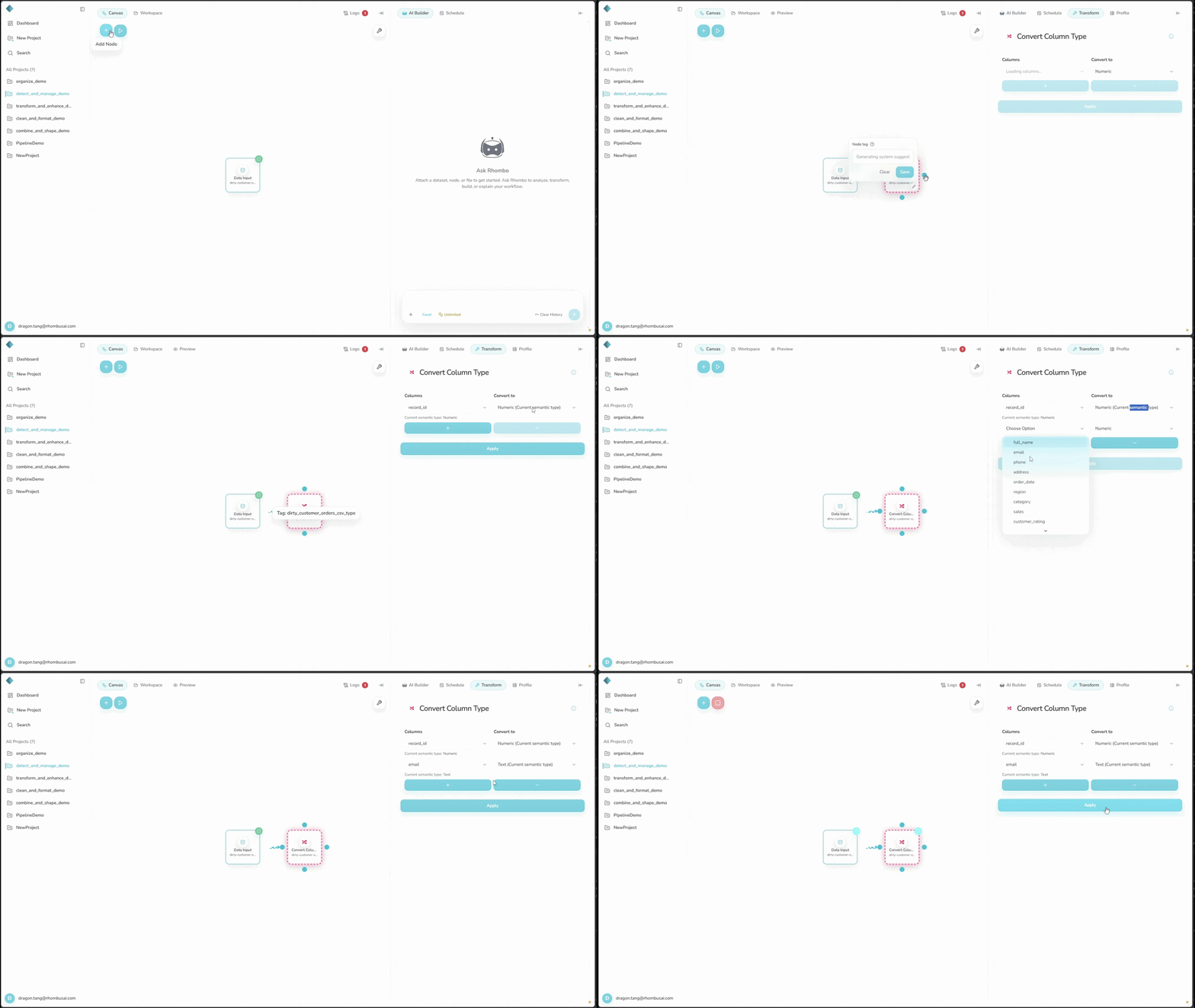
Configuration Options
Basic Options
- Columns: Choose a column to convert. You can add more columns and set a different type for each one.
- Convert To: Choose the new type for each selected column:
- Numeric
- Text
- DateTime
- Categorical
Add another Columns and Convert To pair for each additional column.
Data Types
Numeric
Numbers used in calculations, including integers and floating-point values.
Best for: Quantities, measurements, and counts.
Text
Character strings, including values that contain numbers but should not be used in calculations.
Best for: Names, descriptions, and codes.
DateTime
Dates and times that you want to sort, calculate with, or analyze over time.
Best for: Dates, timestamps, and time-series data.
Categorical
A limited set of distinct values. Categorical data can use less memory and supports category-specific analysis.
Best for: Classifications, groups, and yes/no values.
Examples
Example: Adjusting Data Types in a Sales Dataset
Input Dataset:
| date_column | season_column | sales_column |
|---|---|---|
| October 10, 2023 | Fall | 123.45 |
| 10/31/2023 | Fall | 234.56 |
| November 15, 2023 | Fall | 345.67 |
| 12/31/2023 | Winter | 678.90 |
Initial Data Types:
- date_column: object (string)
- season_column: object (string)
- sales_column: object (string)
Configuration:
- date_column: DateTime
- season_column: Categorical
- sales_column: Numeric
Result:
| date_column | season_column | sales_column |
|---|---|---|
| 2023-10-10 | Fall | 123.45 |
| 2023-10-31 | Fall | 234.56 |
| 2023-11-15 | Fall | 345.67 |
| 2023-12-31 | Winter | 678.90 |
New Data Types:
- date_column: datetime64[ns]
- season_column: category
- sales_column: float64
The transform converts the dates to datetime values, the seasons to categories, and the sales values to numbers.
Best Practices
- Confirm what each column represents before changing its type.
- Watch for information loss when converting to a less precise type, such as float to integer.
- Check the result for errors or unexpected NaN values.
- Consider a categorical type for repeated values in large datasets; it can improve performance.
- Use a consistent date format before converting a column to DateTime.
Troubleshooting
- Numeric conversion fails: Check for non-numeric characters or inconsistent formatting.
- DateTime conversion fails: Make sure every date uses a parseable format. Clean inconsistent values first if needed.
- Too many categories are created: Check whether the column is truly categorical or whether some values should be grouped.