Rename Transform
The Rename transform changes one or more column names.
Basic Usage
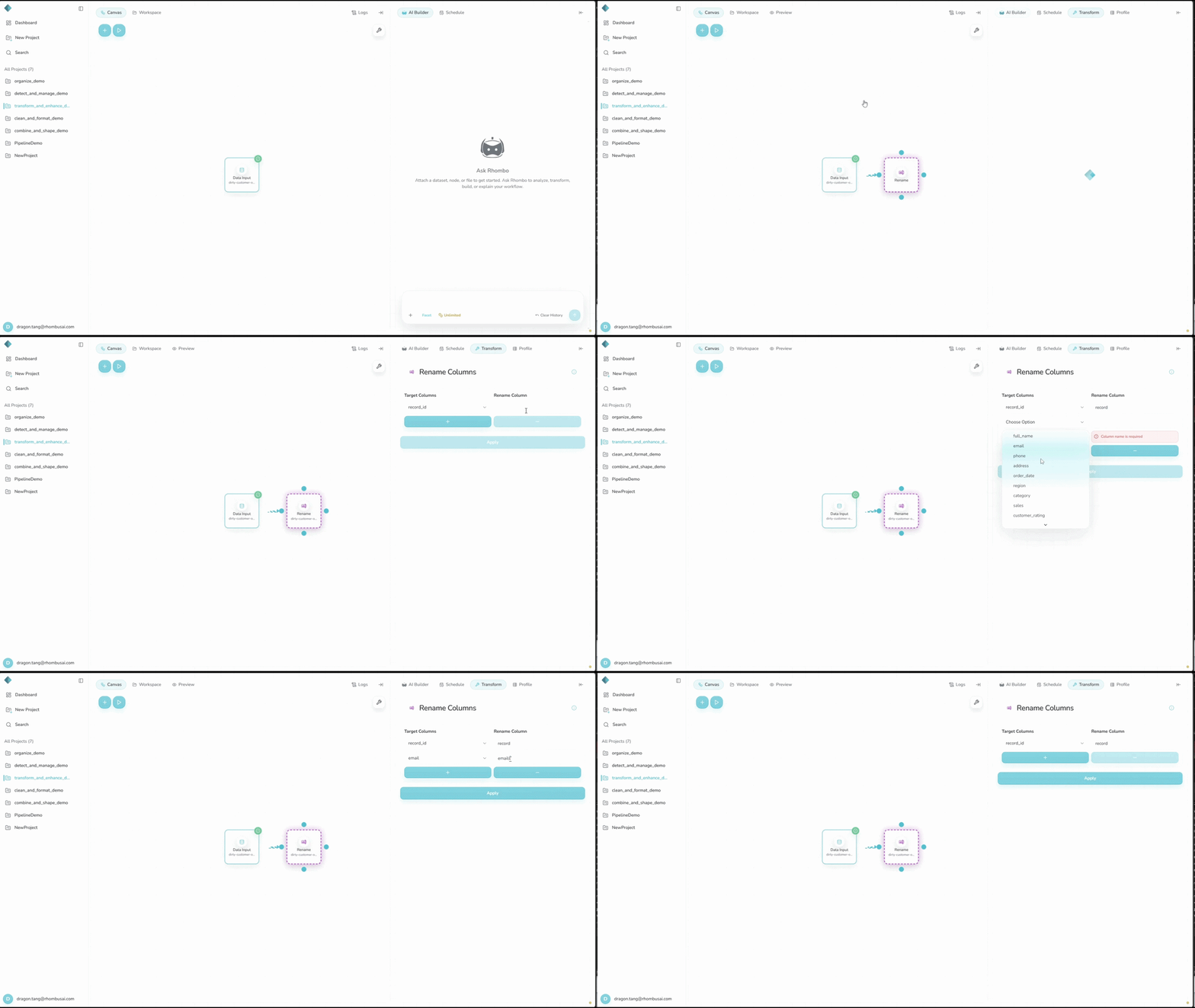
To rename columns:
- Select the Rename transform from the transform menu.
- For each rename pair: a. Choose a field under Target Columns. b. Enter its new name under Rename Column.
- Apply the transformation.
Configuration Options
Basic Options
- Target Columns: Choose a column to rename.
- Rename Column: Enter its new name.
note
Add another Target Columns and Rename Column pair for each additional field.
caution
The workflow UI does not accept periods (.) in new names. The backend changes periods to spaces only in legacy configurations, API-created nodes, and direct backend calls. Names entered in the UI cannot use this fallback.
Examples
Example: Standardizing Column Names
Input Dataset:
| first_name | last_name | DOB | phone_num |
|---|---|---|---|
| John | Doe | 1990-01-01 | 1234567890 |
| Jane | Smith | 1985-05-15 | 9876543210 |
Configuration:
- Select Column:
first_name, Rename Column:FirstName - Select Column:
last_name, Rename Column:LastName - Select Column:
DOB, Rename Column:DateOfBirth - Select Column:
phone_num, Rename Column:PhoneNumber
Result:
| FirstName | LastName | DateOfBirth | PhoneNumber |
|---|---|---|---|
| John | Doe | 1990-01-01 | 1234567890 |
| Jane | Smith | 1985-05-15 | 9876543210 |
tip
Use one naming convention throughout the dataset, such as snake_case or PascalCase.
Best Practices
- Choose short names that describe the field clearly.
- Use one naming convention and avoid special characters.
- Check downstream nodes, code, and reports for references to the old name.
- Document renames when the workflow is shared or audited.
Troubleshooting
- The preview still shows the old name: Refresh the data view.
- The wrong field was renamed: Check Select Column.
- The rename fails: Make sure the new name is unique. Duplicate names are not accepted.