Sort Data Transform
The Sort Data transform orders rows by one or more columns.
Basic Usage
To sort rows:
- Select the Sort Data transform from the transform menu.
- Choose a field under Target Columns.
- Set its Order to ascending or descending.
- To add another sort column, click +, then choose its Target Columns field and Order. Repeat as needed.
- Apply the transformation.
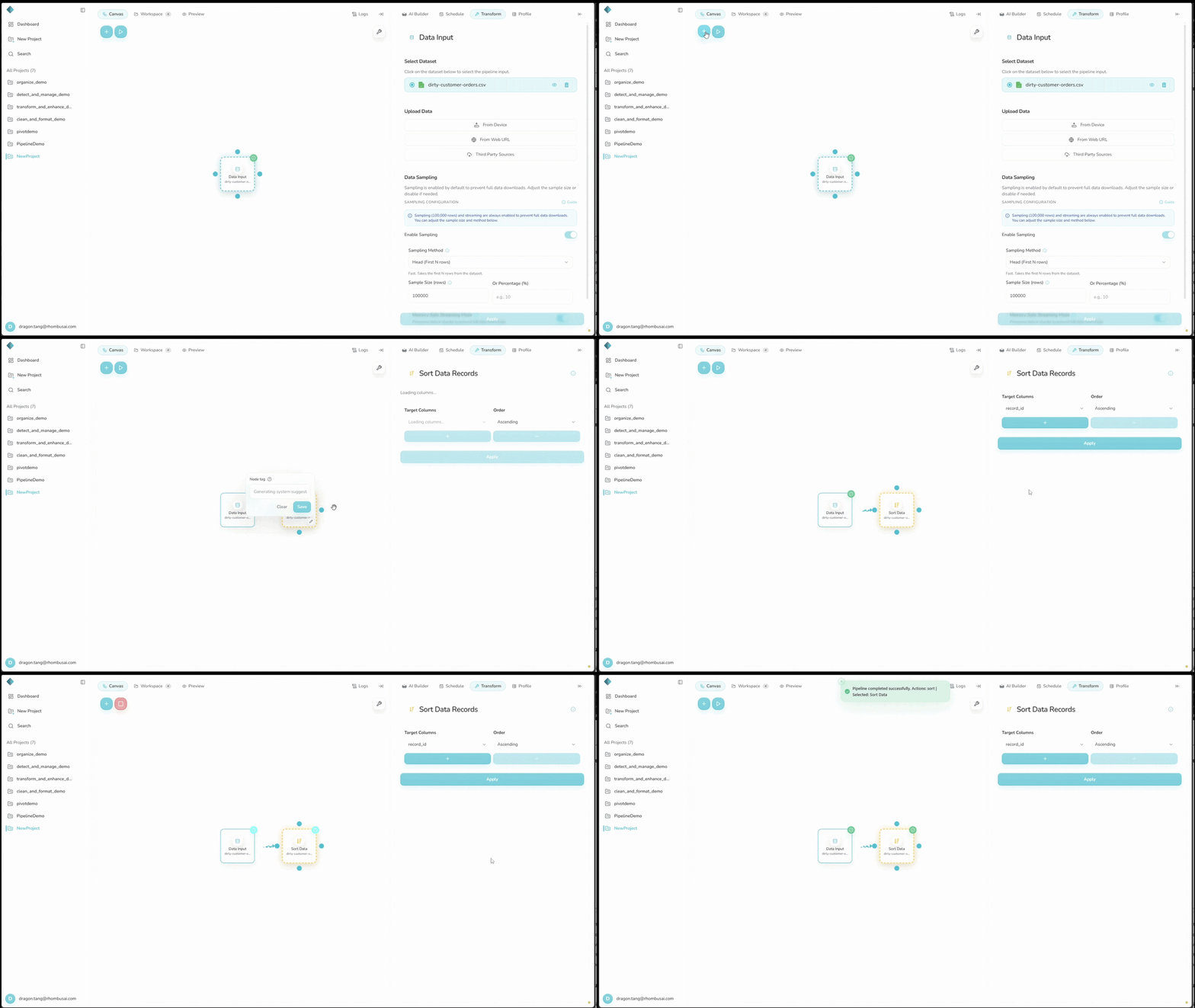
Configuration Options
Basic Options
- Target Columns: Select one column in each sort row. Click + to add a row. The order of these rows sets the sort priority.
- Order: For each selected column, choose either:
- Ascending (A to Z, 0 to 9)
- Descending (Z to A, 9 to 0)
note
The first column is the primary sort. Each later column breaks ties left by the columns before it.
tip
The workflow UI puts null/NaN values last for both sort directions. Direct backend configurations can set na_position to first or last, but this setting is not available in the UI.
Examples
Example: Sorting a Sales Dataset
Input Dataset:
| Date | Product | Sales | Region |
|---|---|---|---|
| 2023-05-15 | B | 1500 | North |
| 2023-05-14 | A | 1000 | South |
| 2023-05-16 | C | 2000 | East |
| 2023-05-15 | A | 1200 | West |
| 2023-05-14 | B | 800 | North |
Configuration:
- Column 1: Date (Ascending)
- Column 2: Product (Descending)
Result:
| Date | Product | Sales | Region |
|---|---|---|---|
| 2023-05-14 | B | 800 | North |
| 2023-05-14 | A | 1000 | South |
| 2023-05-15 | B | 1500 | North |
| 2023-05-15 | A | 1200 | West |
| 2023-05-16 | C | 2000 | East |
The rows are sorted by Date in ascending order, then by Product in descending order within each date.
Best Practices
- Put the most important sort column first.
- Check that each sort column has a consistent data type.
- Account for null/NaN values appearing last.
- Add a row-number column first if you may need to recover the original order.
Troubleshooting
- The order looks wrong: Check the sort column's data type and look for mixed values.
- Dates sort incorrectly: Use one consistent format and confirm that the column is recognized as a date.
- Numbers sort incorrectly: Check for text values or hidden characters.